Connector Quick Start

Start Connector

Unpack the distribution and run the start script located in the installation bin directory.

LINUX

./connector

WINDOWS

./connector.bat

Login to Connector

Once the Connector has started, navigate to the Admin UI and login with the default username and password, admin/admin:

Configure Connector

Follow the description and instruction in the Basic Configuration Menu to configure the mandatory settings.
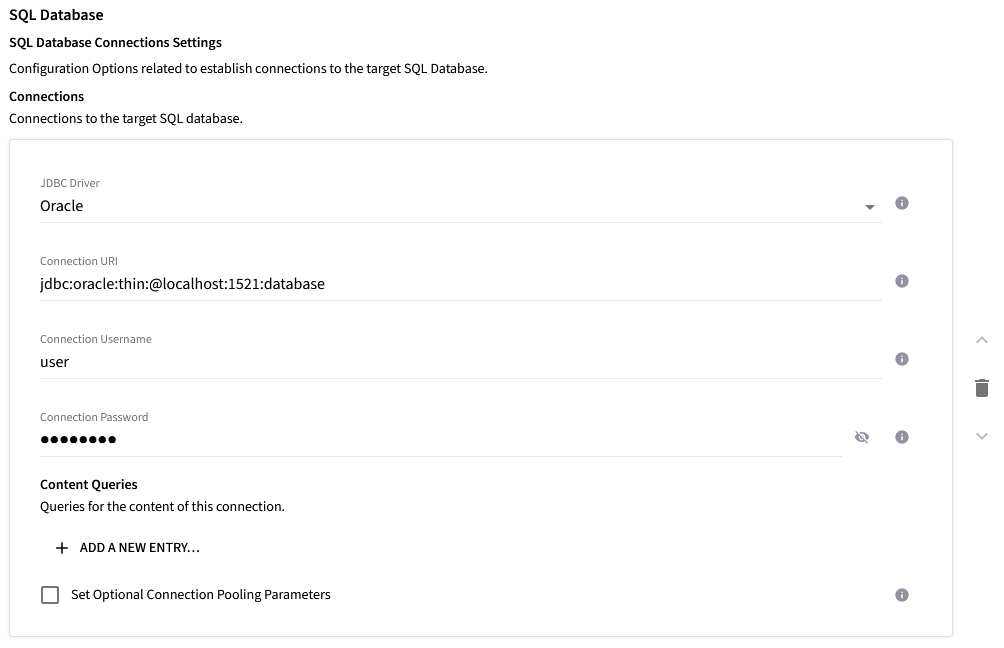
SQL Database Configuration

Configure the connection to the database by stating the JDBC driver, the connection URI, username and password.
Connection Setup

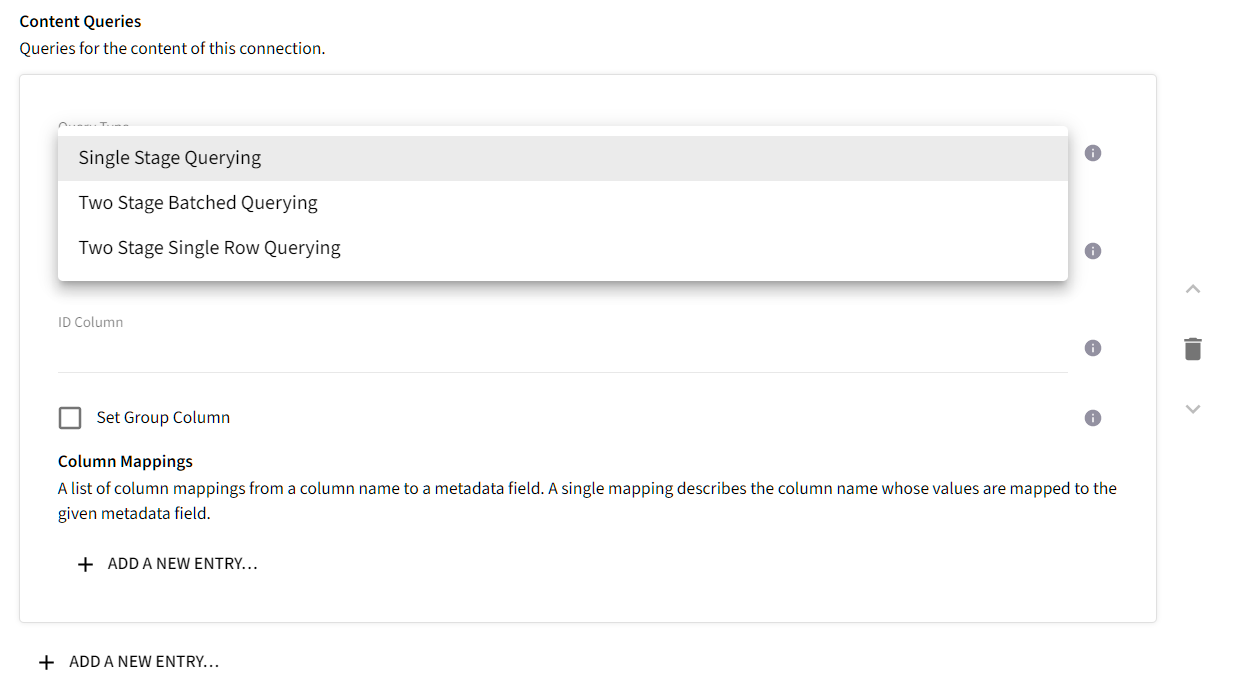
Choose the Query Type

  • Single Stage Querying - this is the simplest form, use this option for simple queries that are expected to return small result sets without error.

  • Two Stage Batched Querying - Use this option for complex queries that may encounter errors in the result set, this option is able to recover and continue while at the same time keeping the query rate to the database at a minimum.

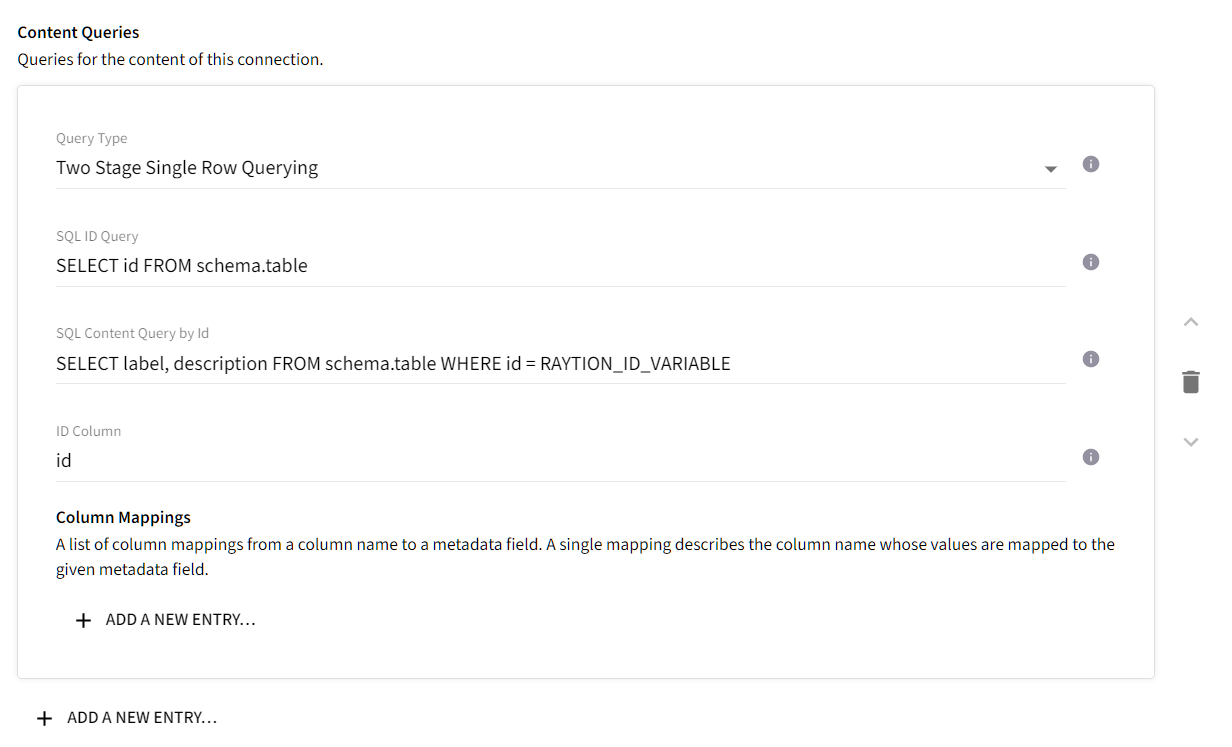
  • Two Stage Single Row Querying - Use this option for complex queries that may encounter errors in the result set, this option is able to recover and continue. This option has a higher query rate to the database, but in most scenarios it will be the fastest most robust option.

If you are unsure which option is best for your scenario then use Two Stage Single Row Querying.

Content Query Setup Query Type
Configure the Content Query, IDs Query and ID Column depending on your Query Type. Make sure to use the appropriate placeholder for the Two Stage …​ Query Types. RAYTION_ID_VARIABLE and RAYTION_IDS_VARIABLE respectively. See here for more information regarding the syntax of each query type.
Content Query Setup Queries

Microsoft SharePoint Configuration

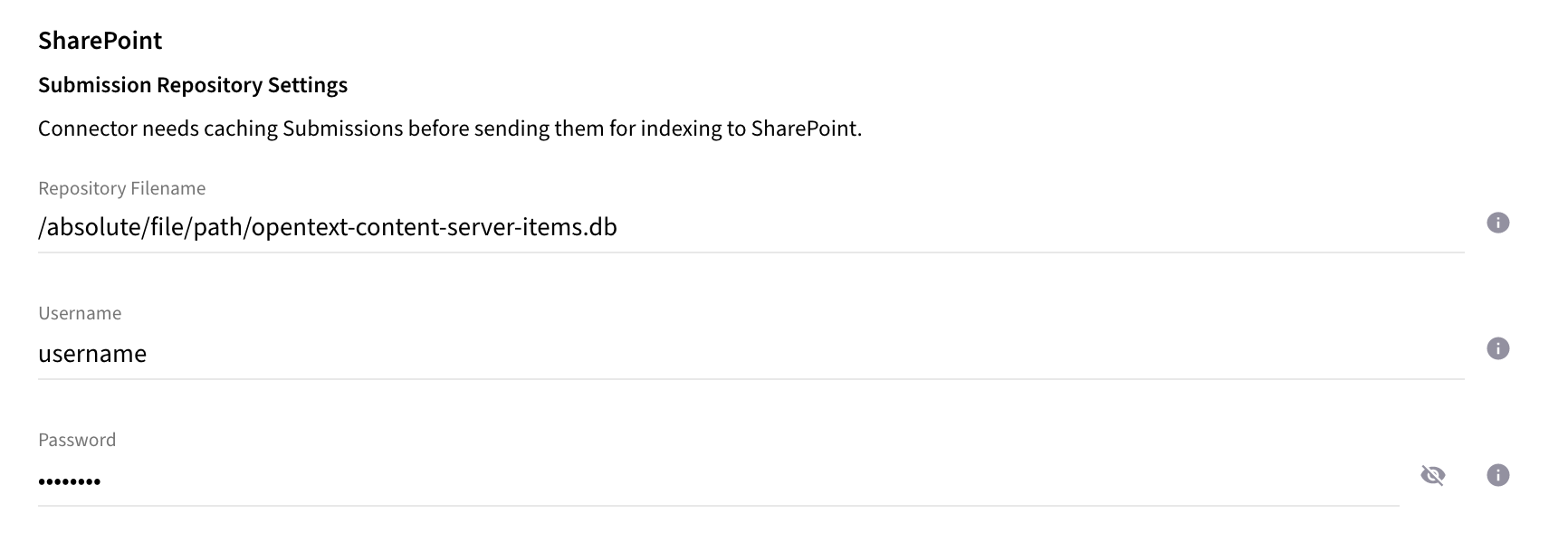
Configure the file of the repository where the Submissions will be cached before being fetched by Microsoft SharePoint. Provide username and password to secure the repository.
submission repository config
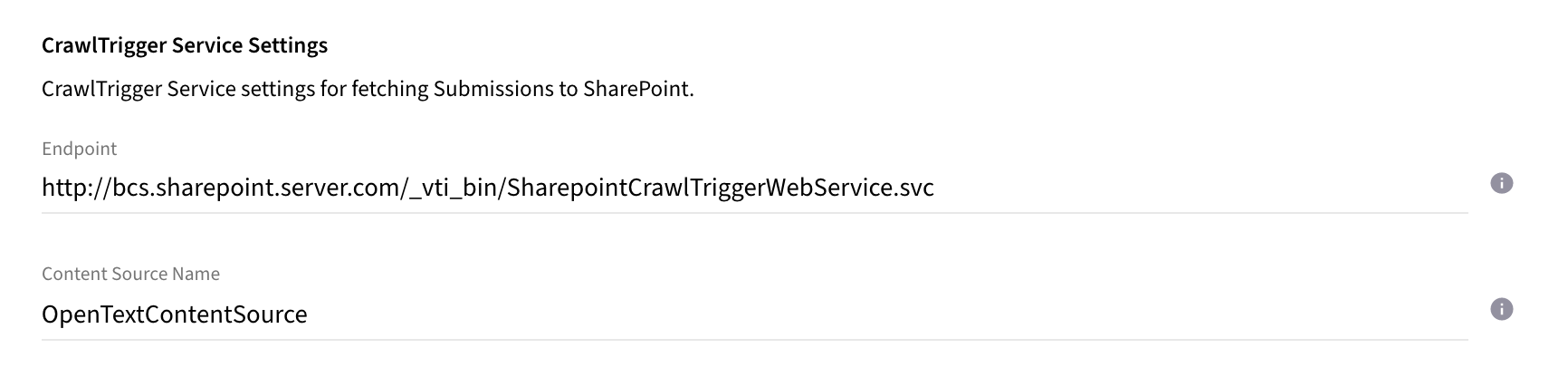
Configure the Endpoint and Content Source of the already installed BCS solution, so that the connector can trigger a SharePoint crawl.
crawl trigger service url
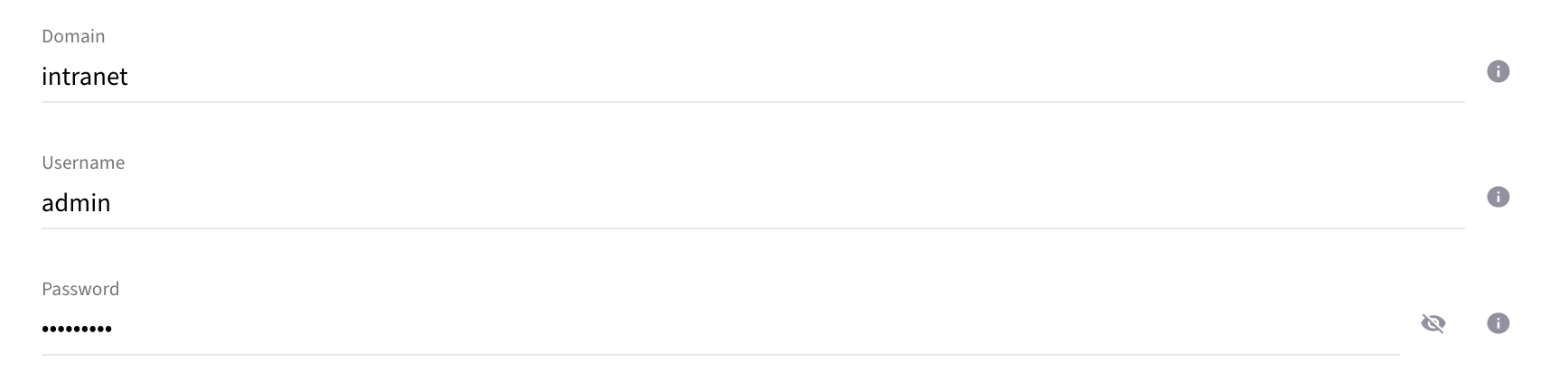
Configure the credentials for the Crawl Trigger Service connection.
crawl trigger credentials

Upload License

  • Contact Raytion and obtain a license for your connector

  • Login to the Admin UI

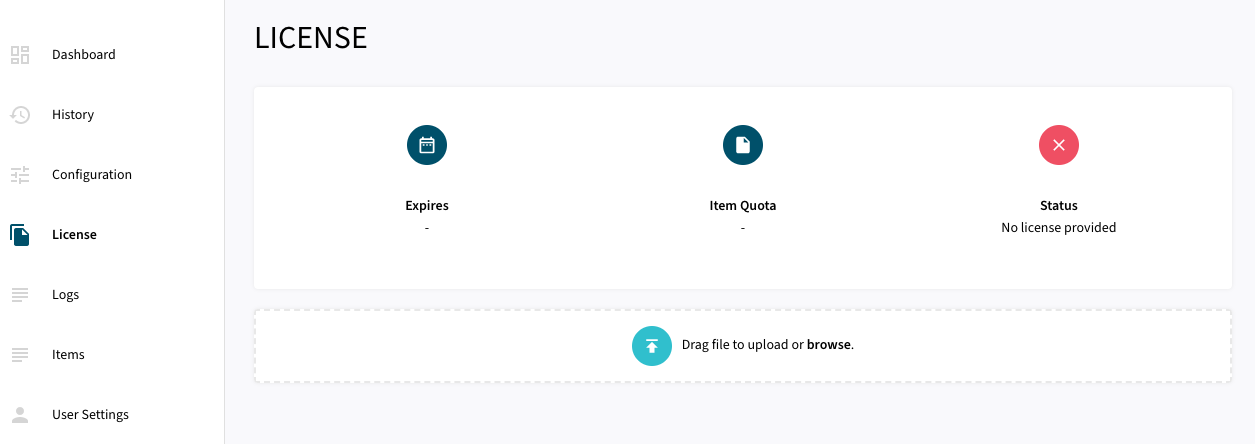
  • Select License in the menu:

uploadlicense 1
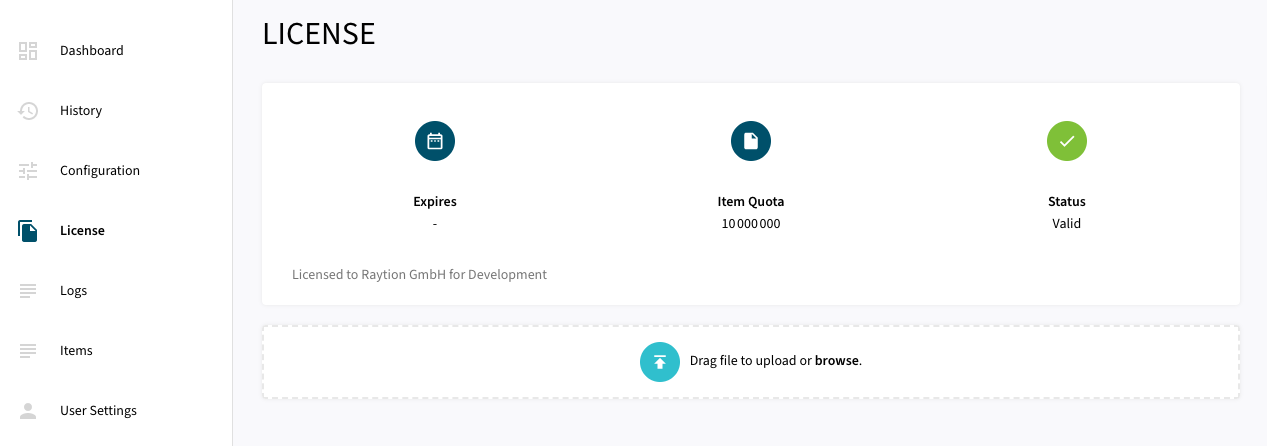
  • Upload the license file by browsing for the file or simply dragging a dropping the license onto the license page

  • The Status of the license will be displayed as valid, and the expiration and item quota will also be displayed:
uploadlicense 2

Synchronizing Data

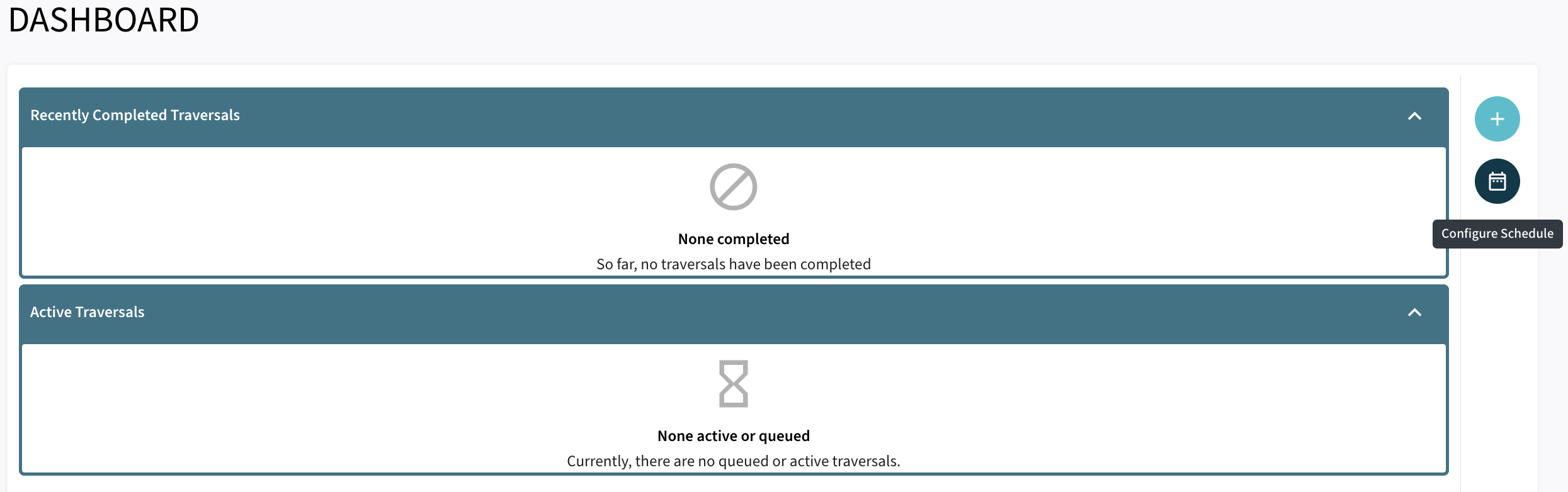
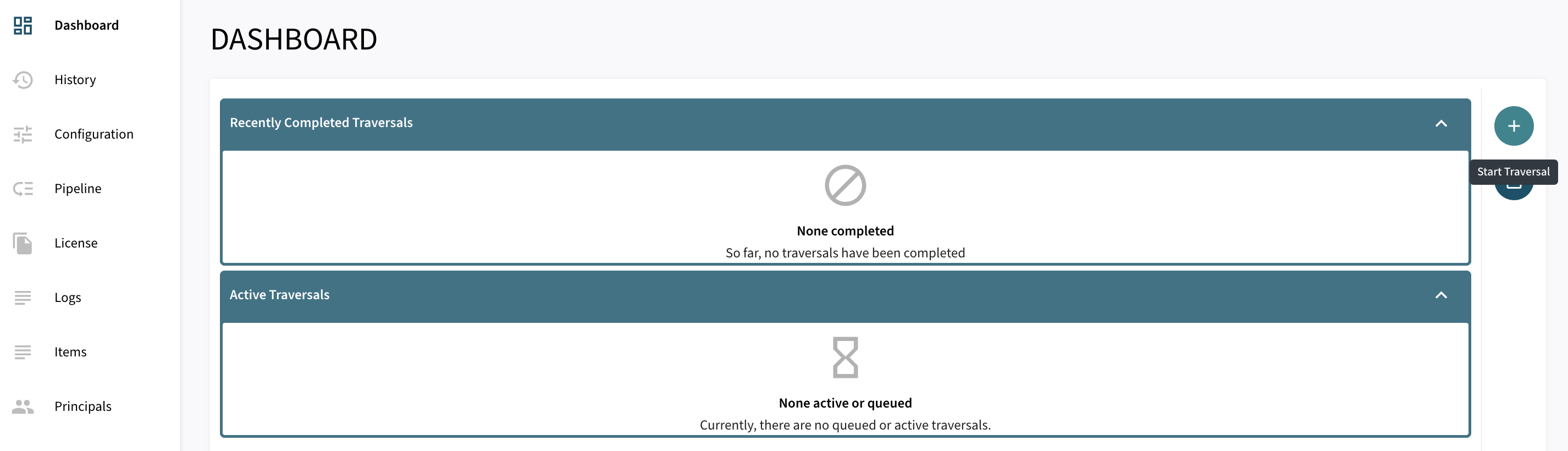
Once the connector is configured and the license uploaded, you can start synchronizing data using the traversal feature in the dashboard.
dashboard start traversal without cp

There are 3 options for Synchronizing:

  • Force Refeed Toggles if previously discovered traversal items that haven’t changed should be fed to the search engine.

  • Process Deletes Toggles if deletions should be fed to the search engine.

  • Run Next The traversal will be prioritized over other traversals without this flag in the queue.
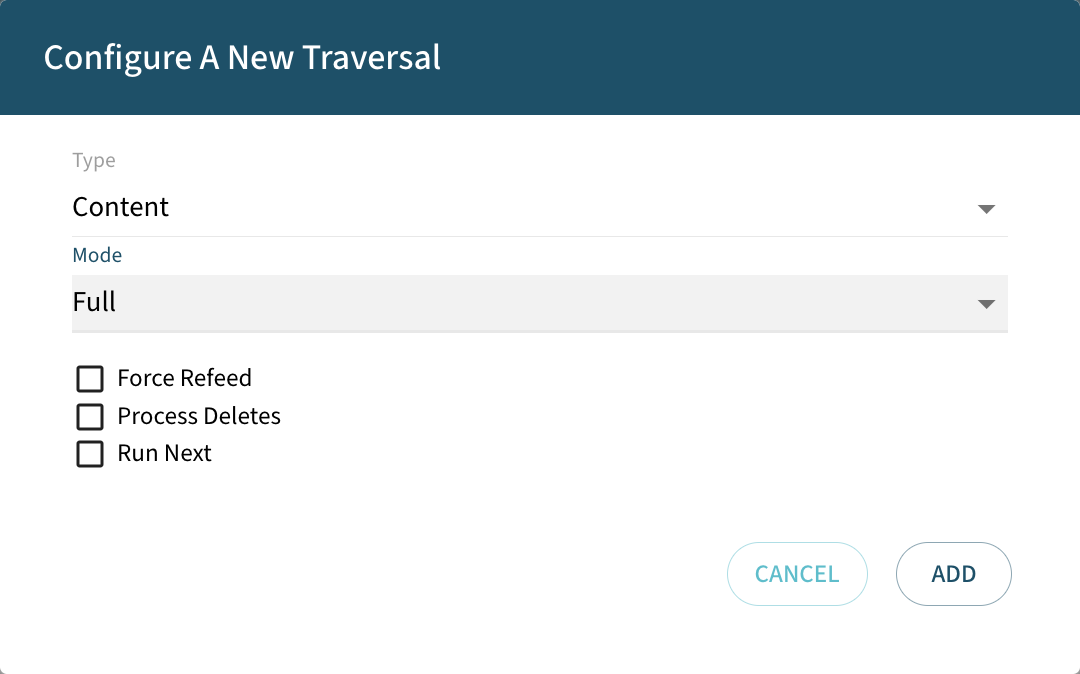
Content Traversal

  • Full

dashboard content traversal without partial

Schedule Traversal

Scheduled traversals can also be configured through the menu.

From this button a Schedule can be configured.
schedule button
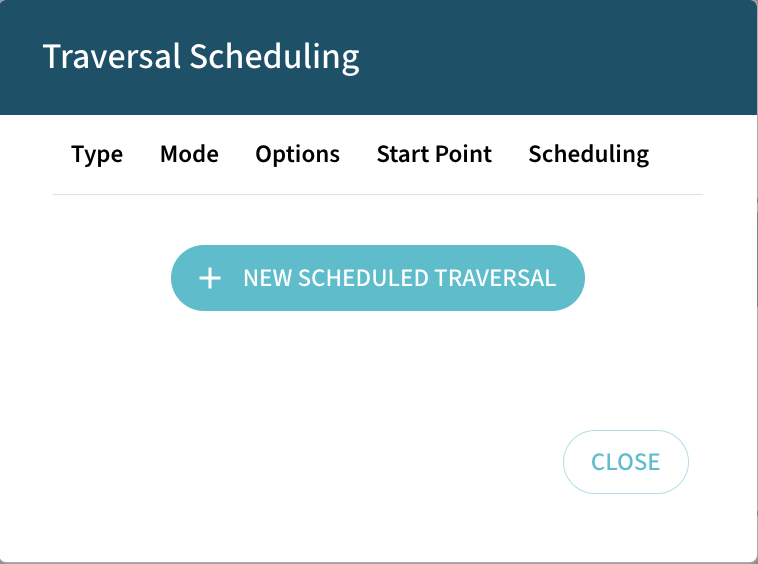
Click on NEW SCHEDULED TRAVERSAL.
scheduling
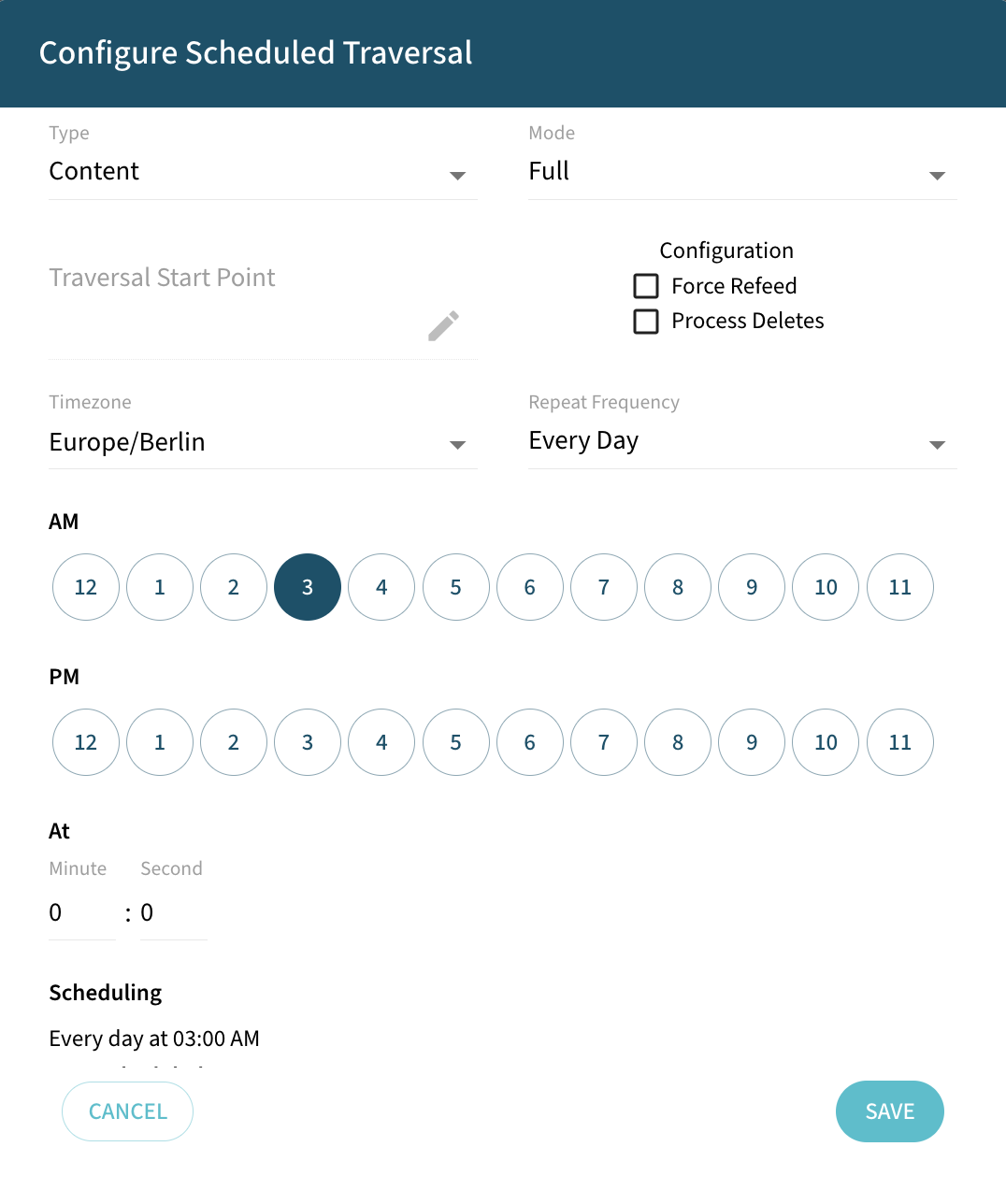
Configure the Traversal that will be executed and click Save.
schedule configuration